
Want to check whether your phone will work on T-Mobile? Use T-Mobile’s official IMEI compatibility checker. Dial *#06# on your phone to find its 15-digit IMEI, enter that number on the T-Mobile Bring Your Own Phone page, and review the result. The tool can help identify whether your device is compatible, partially compatible, incompatible, or has an unresolved status.
But a successful IMEI check does not automatically mean every network feature will work or that your phone is ready to activate. You may also need to confirm that it is unlocked, not blocked, and eligible for your chosen SIM or eSIM activation method.
This guide explains how to complete the T-Mobile IMEI check in 2026, what the different results mean, and exactly what to do when the checker says your phone is partially compatible, blocked, or unknown.
Quick answer: Where to check your IMEI
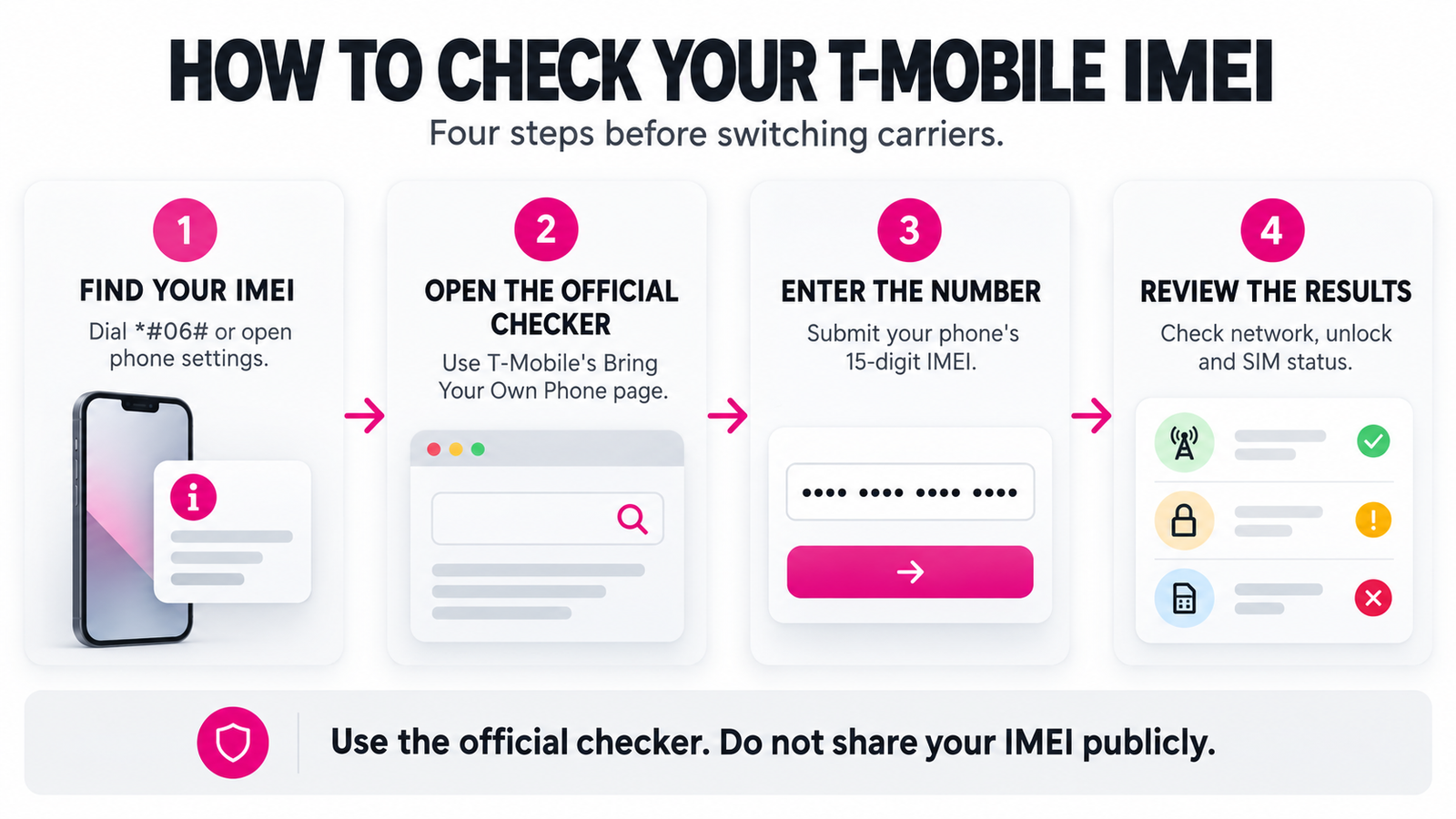
- Dial *#06# on your phone or find the IMEI in Settings.
- Open T-Mobile’s official IMEI compatibility checker.
- Enter your phone’s 15-digit IMEI and select Check phone.
- Read the compatibility result and any additional blocked, unlocked, or eSIM information.
- Resolve outstanding requirements before buying service or transferring your phone number.
Important: The official checker is operated by T-Mobile, not PhonicSpecs. Do not submit your IMEI in public comments or share screenshots containing the complete number.
What Is a T-Mobile IMEI Check?
A T-Mobile IMEI check is an online device eligibility lookup used to help determine whether a particular phone can operate on T-Mobile’s wireless network.
IMEI stands for International Mobile Equipment Identity. It is a unique identifier associated with cellular device hardware. A standard IMEI contains 15 digits and helps identify the specific device rather than simply its marketing name.
When you enter an IMEI into T-Mobile’s checker, the carrier can use information associated with that device to assess its network compatibility and report other available status details.
T-Mobile’s published checker includes separate information concerning:
- Whether the phone supports the required network technologies.
- Whether the device is compatible, partially compatible, or incompatible.
- Whether it is blocked from use on the network.
- Whether carrier-unlock information is available.
- Whether eSIM activation is supported or requires an additional check.
- Certain additional services, such as supported satellite features, where indicated.
Not every result includes confirmed information for every category. An unknown status should not be interpreted as automatic approval or rejection.
Why can’t you check compatibility using only the phone model?
Two smartphones with the same product name can differ in network bands, firmware, SIM configurations, and regional capabilities. A phone originally sold in the United States may support more T-Mobile frequencies than a similarly named model sold overseas.
That is why T-Mobile’s device-specific IMEI result is more useful for activation decisions than assuming compatibility from the brand name alone.
For a broader explanation of radio bands and device models, read our T-Mobile compatible phones guide. This article focuses on using and understanding the actual IMEI check.
How to Find Your Phone’s IMEI Number
You usually do not need a separate app or a paid service to find your IMEI. The identifier is available through your phone’s dialer or device settings.
Method 1: Dial *#06#
- Open your phone’s dialer.
- Enter *#06#.
- On supported phones, the device information screen will display the IMEI.
- Copy or carefully note the number that corresponds to the cellular SIM or eSIM you intend to use.
If your phone displays two IMEI numbers, keep both available until you know which one T-Mobile needs for the intended activation.
Method 2: Find the IMEI on an iPhone
- Open Settings.
- Tap General.
- Select About.
- Scroll down to find IMEI or other cellular identifiers.
- Touch and hold the identifier if you want to copy it.
Apple confirms these steps in its official IMEI and serial-number instructions. Depending on the device, the same screen may also show an EID, carrier-lock information, and additional identifiers.
Method 3: Find the IMEI on Android
Android settings vary between manufacturers, but the general process is similar:
- Open Settings.
- Select About phone or About device.
- Look for IMEI, Status, or a SIM-specific device information section.
- Copy the relevant 15-digit number.
Google’s Pixel IMEI documentation confirms that certain phones have separate identifiers for physical SIM and eSIM functions.
What if your phone shows IMEI 1 and IMEI 2?
Some dual-SIM smartphones have two IMEI numbers. This can occur when a phone supports two cellular connections, such as a physical SIM and an eSIM.
For example, Google’s Pixel support documentation explains that the primary and secondary IMEIs can correspond to different SIM functions.
Do not assume that IMEI 1 is always the correct number for your intended activation. If a result is confusing, ask T-Mobile which identifier applies to the SIM or eSIM you plan to activate.
How to Check Phone Compatibility Using T-Mobile’s Official IMEI Checker
Once you have your IMEI, use the carrier’s own tool rather than relying exclusively on third-party device databases.
Step 1: Open T-Mobile’s Bring Your Own Phone page
Visit the official T-Mobile IMEI compatibility checker.
The page provides a device compatibility section where you can enter the IMEI. T-Mobile may update the surrounding page design or activation options, but the core purpose remains determining whether the device can be brought to its network.
Step 2: Enter the 15-digit IMEI
Locate the IMEI entry field and carefully enter the device identifier.
Use the actual phone’s IMEI, not its serial number, marketing model name, or SIM card number.
If you copied the IMEI from your settings, make sure the correct identifier was selected. If entering the number manually, check for missing or duplicated digits.
Step 3: Select Check phone
Submit the number using the checker button. Depending on the page or activation flow, the button may read Check phone or Check compatibility.
The result may identify the device and describe its compatibility with the network. Some results also provide options to continue with eSIM, request a physical SIM, or investigate additional eligibility requirements.
Step 4: Read every relevant status
Do not stop after seeing a positive compatibility message. Check whether the tool provides additional information about blocking, unlocking, and SIM or eSIM support.
A device can have suitable radio hardware while another requirement remains unresolved. For example, the tool may identify network support while indicating that its carrier-unlock status cannot be confirmed.
The result may contain several separate checks. Read the compatibility, blocking or unlocking, and SIM or eSIM information before proceeding.
Tip: If the checker produces an inconclusive result, save the wording of the message for reference without publicly sharing your full IMEI. T-Mobile support can help investigate the device-specific status.
T-Mobile IMEI Check Results Explained: Compatible, Partial, Incompatible and Unknown
The most useful part of an IMEI lookup is understanding the next step after the result appears.
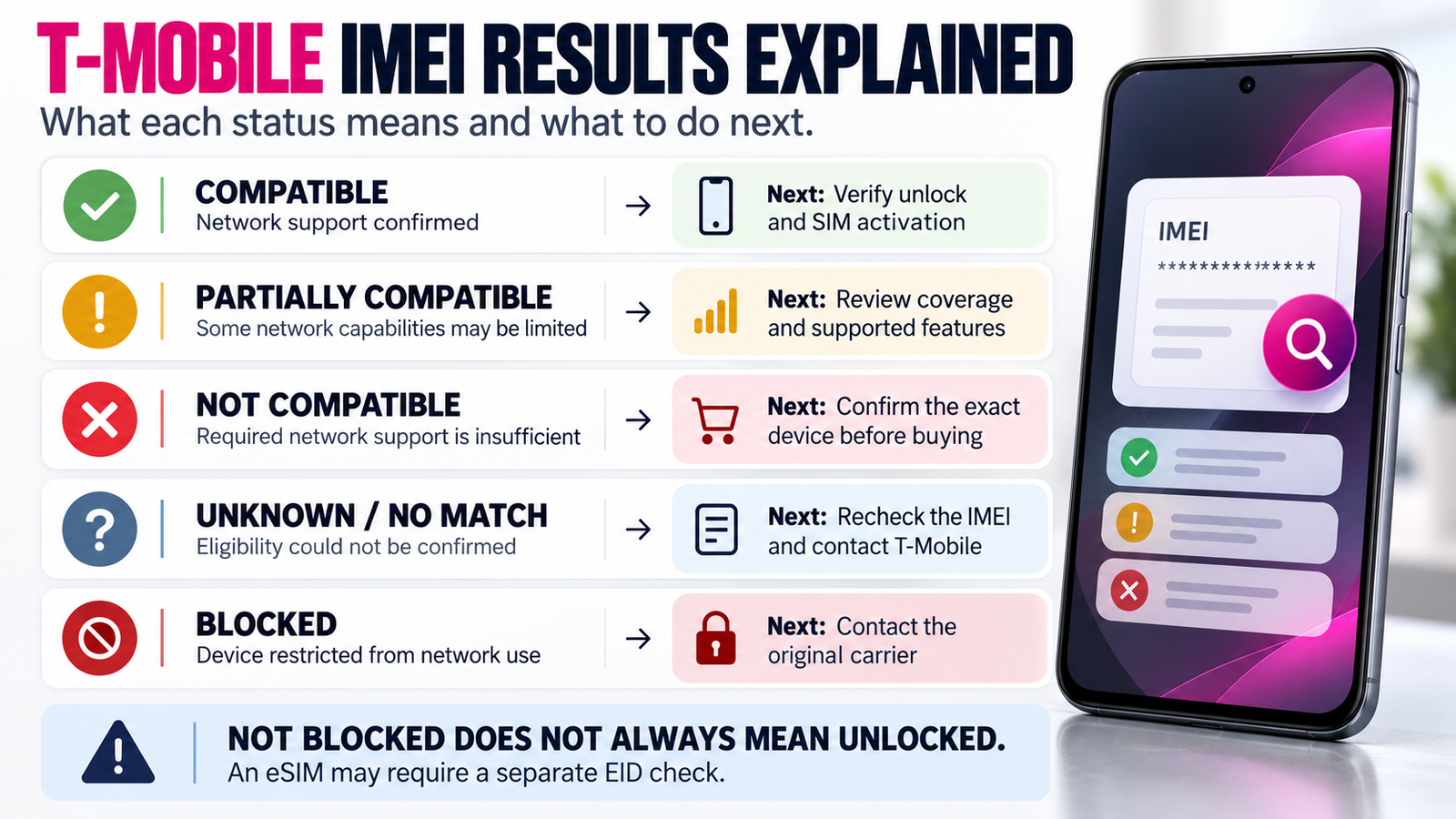
T-Mobile’s published consumer and prepaid checker interfaces identify several compatibility states. Its BYOD support guide also describes why a device may be only partially compatible with the network.
| Result | What it generally means | Recommended action |
|---|---|---|
| Compatible | T-Mobile identifies suitable network compatibility for the device. | Confirm unlock status, SIM or eSIM eligibility, and needed features before activation. |
| Partially compatible | The device may work but lack some relevant network capabilities. | Investigate coverage and feature limitations before deciding to proceed. |
| Incompatible | The device does not meet the carrier’s applicable network compatibility requirements. | Double-check the IMEI, then consider another device if T-Mobile confirms the result. |
| Unknown / No match found | The checker could not establish a conclusive result. | Confirm the identifier and model specifications; contact T-Mobile if unresolved. |
| Blocked | The device is restricted from use on the network. | Contact the original carrier or relevant account holder to investigate. |
| Technical difficulties | The lookup could not be completed at that time. | Try again later or contact T-Mobile if the issue persists. |
The most important distinction is that network compatibility, device blocking, carrier locking, and eSIM eligibility are separate checks.
1. Compatible: What does a positive result mean?
A compatible result is encouraging. It means the checker identifies the phone as supporting the applicable T-Mobile network requirements.
However, it should not be read as a promise of identical coverage, guaranteed data speeds, or every carrier-specific feature.
Before activation, confirm:
- The device is not locked to another carrier.
- No blocking restriction prevents its use.
- You can activate using the supported SIM or eSIM method.
- The phone supports essential calling and messaging services.
- T-Mobile provides appropriate coverage where you intend to use it.
T-Mobile explicitly cautions that it cannot guarantee the performance of every device originally sold outside its own authorized channels.
Next step: Complete the remaining checks and follow the official activation instructions if the device is eligible.
2. Partially compatible: Will the phone still work?
Possibly. A partially compatible result indicates that the phone may be usable but might not deliver access to the same network capabilities as a more fully supported device.
T-Mobile’s BYOD guide explains that partial compatibility can result from missing network frequencies or technologies, potentially reducing available coverage or data performance.
For example, a phone designed for another country’s wireless networks may support some T-Mobile LTE frequencies but lack certain Extended Range bands.
Before relying on a partially compatible device:
- Review T-Mobile’s explanation of the limitations.
- Identify the exact manufacturer model and regional variant.
- Compare its published frequencies with T-Mobile’s network.
- Check coverage at your home and other important locations.
- Confirm whether calling, messaging, data and any essential features are supported.
The distinction is especially important when buying an imported smartphone. A compatible network band does not by itself establish satisfactory coverage everywhere.
Next step: Seek clarification about the missing capabilities before buying or transferring your primary service.
3. Incompatible: Can the result be fixed?
An incompatible result means the checker does not consider the device suitable for T-Mobile’s required network technologies and frequencies.
First, verify that you entered the correct IMEI and selected the intended cellular device. If the identifier is correct and T-Mobile confirms incompatibility, do not assume an unlock request or SIM replacement will make the phone compatible.
Unlocking cannot add missing cellular modem hardware or unsupported radio frequencies.
Next step: Investigate an alternative phone that T-Mobile confirms is eligible.
4. Unknown compatibility or No match found
An unknown result is not the same thing as a confirmed incompatible device.
T-Mobile’s consumer checker provides an unknown-compatibility state when it cannot confirm device eligibility. Its BYOD support guide separately discusses the “No match found” result and recommends checking whether the handset supports T-Mobile frequencies.
Possible explanations include an incorrectly entered number, limited information about the device model, or an identifier that the lookup cannot currently resolve. These are possibilities, not diagnoses of a specific phone.
Take the following steps:
- Copy the IMEI directly from the phone’s settings and check the number.
- If the phone has multiple IMEIs, confirm which identifier applies to your intended activation.
- Identify the exact model number and region.
- Consult the manufacturer’s network specifications.
- Contact T-Mobile with the result if compatibility remains unconfirmed.
Next step: Do not purchase or activate service on the assumption that an unknown result means approval.
5. Blocked: Why can’t the device be used?
A blocked-device result indicates a restriction on the handset’s use on the network. That is different from a simple radio-band compatibility problem.
Blocking can be associated with device status issues. However, a particular checker message should not be used to guess the phone’s history or the reason for the restriction.
Contact the original carrier or the relevant account holder for an explanation. If you are purchasing a used phone, ask the seller to resolve the issue through the appropriate carrier before proceeding.
Next step: Do not treat a blocked phone as ready to activate simply because its published specifications support T-Mobile frequencies.
6. Technical difficulties or a temporary error
T-Mobile’s published checker includes a temporary technical-error state. This indicates that the compatibility check could not be completed at that moment.
A temporary service error is not evidence that the device is incompatible. Try the official checker again later, or ask T-Mobile support to check eligibility if the issue continues.
Is a Blocked IMEI the Same as a Carrier-Locked Phone?
No. Blocked and carrier-locked describe different restrictions. Confusing them can cause serious problems when purchasing a used or imported phone.
| Status | Meaning | Who should investigate? |
|---|---|---|
| Carrier-locked | The phone is restricted to a particular wireless provider. | The original carrier or seller. |
| Blocked | The device has a network-use restriction associated with its status. | The original carrier or relevant account holder. |
| Not blocked | The checker does not identify a blocking restriction in that reported status. | Still confirm network eligibility and unlocking. |
| Unlock status unknown | The checker cannot confirm whether a carrier lock remains. | The original carrier. |
One especially important distinction appears in T-Mobile’s own checker: it can indicate that a device is not blocked while separately reporting that it cannot confirm whether the device is unlocked.
In other words, “not blocked” does not necessarily mean “unlocked.”
How do you confirm carrier-unlock status?
On an iPhone, open Settings > General > About and look for the Carrier Lock field. According to T-Mobile’s device-unlock documentation, “No SIM restrictions” indicates that the iPhone is unlocked.
On Android, the method varies by manufacturer and carrier. Use the original provider’s account or unlock-status instructions when available.
T-Mobile states that an unlocking request for a device it did not sell or authorize generally needs to be handled by the original carrier or manufacturer, rather than by T-Mobile.
Does a clean IMEI guarantee the phone is paid off?
Not necessarily. Different IMEI lookup services report different information, and a network compatibility or non-blocked result should not be treated as comprehensive proof of a phone’s financial or ownership history.
Before purchasing a secondhand device, ask the seller for appropriate proof of purchase and confirm any unresolved financing or account obligations with the original carrier.
IMEI vs. EID vs. ICCID: Which Number Does T-Mobile Need?
These identifiers are commonly confused because they can appear together in the same phone settings screen. They serve different purposes.
| Identifier | What it identifies | Typical use |
|---|---|---|
| IMEI | Cellular device equipment | Device identification and network eligibility checks |
| EID | Embedded SIM hardware | eSIM compatibility or activation verification |
| ICCID | SIM card or SIM profile | Identifying a SIM during activation or management |
T-Mobile’s prepaid support documentation describes the IMEI as a 15-digit identifier, the EID as a 32-digit identifier, and the ICCID associated with a physical SIM as a 19-digit identifier in its activation flow.
Why might T-Mobile request an EID after the IMEI check?
T-Mobile’s consumer checker can indicate that it cannot determine eSIM eligibility using the available device information. In that situation, the page may request the phone’s EID for an additional compatibility check.
You can often find the EID by dialing *#06# or opening the phone’s cellular information settings. Apple’s and Google’s official support pages also explain where to locate it on supported devices.
Providing an EID for eSIM verification is not the same as completing a second network-band assessment.
What if the phone cannot use eSIM?
If T-Mobile reports that eSIM cannot be used, investigate whether the device supports activation with a physical T-Mobile SIM card.
T-Mobile’s SIM and eSIM support page explains the available SIM activation methods.
However, a physical SIM cannot solve an underlying network incompatibility, and eSIM-only devices must have a supported eSIM activation path.
T-Mobile IMEI Checker Not Working? Troubleshoot These Problems
If the IMEI check fails, the next step depends on whether the issue involves the identifier, lookup process, network eligibility, or activation method.
The checker says the IMEI is invalid
First, confirm that the value is the correct 15-digit IMEI rather than an EID, ICCID or device serial number.
Retrieve it directly from your phone’s settings if possible. Double-check the digits and use the official checker again.
If the number continues to be rejected, contact the device manufacturer or T-Mobile rather than repeatedly entering unrelated identifiers.
The phone model is not recognized
A missing or unavailable model name does not independently prove that the handset cannot operate on the network.
Confirm the exact manufacturer model identifier, then investigate its published network specifications and seek a device-specific eligibility determination from T-Mobile.
The checker cannot verify whether the phone is unlocked
Contact the original wireless carrier. T-Mobile notes that its tool cannot determine the lock status of every device.
If you are buying a used phone, request confirmation before finalizing the purchase rather than relying on a seller’s unsupported claim.
The IMEI check passes but eSIM activation fails
Check whether the carrier requires an EID, whether the specific model supports T-Mobile eSIM activation, and whether you are using the correct activation flow.
If you are already a T-Mobile customer moving a line to a different device, use the carrier’s current SIM transfer or eSIM activation guidance.
Do not assume that an IMEI compatibility result guarantees that an eSIM transfer will complete without additional verification.
The checker confirms compatibility but the phone has no service
A successful compatibility check does not itself activate the SIM or configure the device.
Confirm that the SIM or eSIM has been activated on the correct account, the device is unlocked, and service is available at your location.
For supported bring-your-own devices, T-Mobile provides additional data and APN configuration instructions when mobile data or picture messaging is not working correctly.
Do not change APN settings blindly if the problem is an inactive line, an unsupported device or a carrier-lock restriction. Identify the underlying issue first.
The IMEI result changed or conflicts with another website
Different services may report different kinds of information. A third-party IMEI database might emphasize blocked-device records, while T-Mobile’s own tool assesses eligibility for its network.
Recheck the exact identifier and prioritize T-Mobile’s current device-specific determination for T-Mobile activation. If conflicting results could affect a purchase, obtain clarification from the relevant carrier before proceeding.
How to Check a Used Phone Before Bringing It to T-Mobile
Used phones deserve extra verification because network support, unlocking and device history may not be obvious from the product listing.
Before buying a phone advertised as “T-Mobile compatible,” follow this practical checklist:
- Verify the exact model. Confirm the manufacturer’s model identifier and original market.
- Confirm the IMEI. Obtain the identifier from the actual device, not merely from a typed marketplace description.
- Check T-Mobile eligibility. Run the official compatibility checker.
- Confirm unlock status. Ask the original carrier when necessary.
- Investigate any blocking or financial restrictions. Do not assume a compatible radio modem means a clear device history.
- Check SIM requirements. Confirm whether the phone uses a physical SIM, eSIM, or both.
- Review essential features. Confirm voice calling, data and other important functionality.
A third-party service such as Swappa’s IMEI checker can provide a separate device-status reference, but its result is not a replacement for T-Mobile’s activation determination or the original carrier’s account information.
If a seller refuses to provide enough information to verify a phone’s identity and activation eligibility, consider purchasing a device with clearer documentation and a reasonable return policy.
What to Do After T-Mobile Confirms Your Phone Is Compatible
Once the carrier confirms the device’s network eligibility and you have verified that it is unlocked and not blocked, you can investigate service activation.
1. Choose the appropriate SIM method
Follow T-Mobile’s instructions for activating either a supported eSIM or physical SIM. Some devices can activate digitally, while others require a physical card.
If an EID check is requested, complete it through the official carrier flow.
2. Decide whether to keep your phone number
An IMEI compatibility check does not automatically transfer your existing telephone number.
Phone-number transfer eligibility is a separate process. If you want to keep your number, review T-Mobile’s official number-transfer instructions.
You may need your existing carrier account number, transfer PIN, billing information and other account details.
Do not cancel your existing mobile service before the number transfer is complete. T-Mobile specifically recommends keeping the previous account active until the transfer finishes.
3. Confirm the phone actually works after activation
Once your service is active, check the everyday functions that matter to you:
- Outgoing and incoming voice calls
- Text messages
- Mobile data access
- 4G LTE or 5G connectivity where available
- Wi-Fi Calling, if supported and needed
- Any additional account or network features you rely on
If something fails, distinguish between coverage problems, activation issues, missing radio support and carrier-specific configuration before assuming the phone itself is defective.
4. Compare alternatives if the device is unsuitable
If T-Mobile confirms that your phone is not compatible, use the PhonicSpecs Phone Finder to investigate alternatives by brand, operating system, storage, display and other specifications.
You can also use the PhonicSpecs comparison interface to compare shortlisted phones side by side.
Because smartphone variants can differ by region, always verify the exact U.S. model and IMEI eligibility independently before buying. PhonicSpecs does not perform carrier activation checks on your behalf.
Frequently Asked Questions About T-Mobile IMEI Checks
Is the T-Mobile IMEI check free?
T-Mobile provides an online IMEI compatibility lookup as part of its Bring Your Own Phone process. You do not need to purchase a phone simply to view the public checker. Charges may apply later if you choose a mobile plan or other paid service.
Can I check a Verizon or AT&T phone using T-Mobile’s IMEI checker?
Yes. The checker is intended to help evaluate phones being brought from other providers. The device still needs to meet network eligibility requirements and be unlocked for use on T-Mobile.
Does a compatible IMEI mean my phone is unlocked?
No. Network compatibility and carrier-unlock status are separate questions. T-Mobile may report suitable network support while remaining unable to confirm whether a phone is unlocked. Contact the original carrier when that status is uncertain.
Does T-Mobile’s IMEI checker detect a stolen or blocked phone?
The published checker includes a device-blocking status. However, its result should not be treated as a comprehensive guarantee of ownership, financial history or every possible device restriction. Investigate any uncertainty with the original carrier before purchasing.
Why does T-Mobile say No match found?
It means the lookup has not produced the needed device match. T-Mobile advises checking its network frequency support when this appears. Confirm the IMEI and exact model, and contact T-Mobile or the manufacturer if compatibility remains uncertain.
Can a phone pass the IMEI check but fail eSIM activation?
Yes. General network compatibility and eSIM eligibility are separate. T-Mobile may request the device’s EID for an additional check or direct the user toward physical SIM activation if supported.
Which IMEI should I use if my phone has two?
Use the IMEI associated with the cellular SIM or eSIM function you intend to activate. Because assignments vary by device, ask T-Mobile for guidance if it is unclear which identifier should be checked.
Can an international smartphone pass T-Mobile’s IMEI check?
Some international phones may be eligible, but eligibility depends on the exact device. A phone can support portions of T-Mobile’s network without supporting every frequency or carrier feature. Verify the regional model and the actual IMEI result.
Does checking the IMEI activate my phone automatically?
No. Entering the IMEI into the compatibility checker does not by itself activate a SIM, establish a mobile plan or transfer your telephone number. Those processes require separate activation or account steps.
What should I do if I accidentally shared my IMEI publicly?
Remove the publicly shared identifier where possible and avoid reposting screenshots that expose it. For account or device-status concerns, contact your carrier through its official support channels.
Final Verdict: Check the IMEI, Then Check the Details
The T-Mobile IMEI check is an important first step before switching carriers, activating an unlocked phone or purchasing a used smartphone.
But the most useful information is not simply whether the checker displays “compatible.” You also need to understand what it says about partial compatibility, blocking, carrier unlocking and the activation method your phone requires.
Start with the official T-Mobile IMEI checker, review every relevant status, and resolve uncertainty before paying for a device or transferring your primary phone number.
If your existing smartphone is unsuitable, explore the PhonicSpecs Phone Finder. For a broader explanation of network bands, regional variants and compatible smartphones, read our T-Mobile Compatible Phones guide.
Sources and Verification
This guide was prepared using official carrier and manufacturer documentation reviewed on October 12, 2026.
- T-Mobile — Bring Your Own Phone and IMEI Compatibility Checker
- T-Mobile Prepaid — IMEI Compatibility Checker
- T-Mobile — Bring Your Own Device Guide
- T-Mobile — Device Unlock Guidance
- T-Mobile — SIM and eSIM Support
- T-Mobile — Transfer Your Phone Number
- Apple — Find Your IMEI, EID and Serial Number
- Google — Find Pixel IMEI and EID Numbers
Editorial note: The result explanations reflect the publicly documented T-Mobile checker interface and its support materials. They are not results from a live test using a customer IMEI. Individual devices were not submitted for verification, and no activation or performance testing was conducted. Carrier interfaces, eligibility rules and network capabilities can change. PhonicSpecs is an independent smartphone information website and is not affiliated with T-Mobile.
One response
Comments are closed.